Please note: You need separate logins to access the student ID and the inbox, as the e-mail tool in UniNow works like a stand-alone e-mail program and does not take over the access data.
If you have difficulties logging in, please visit the troubleshooting page.
Please note that you will be automatically logged out of the system after 30 days from the last time you accessed your ID card. Please make sure that you are logged in before traveling by bus or train, as there may be no network available on the way.
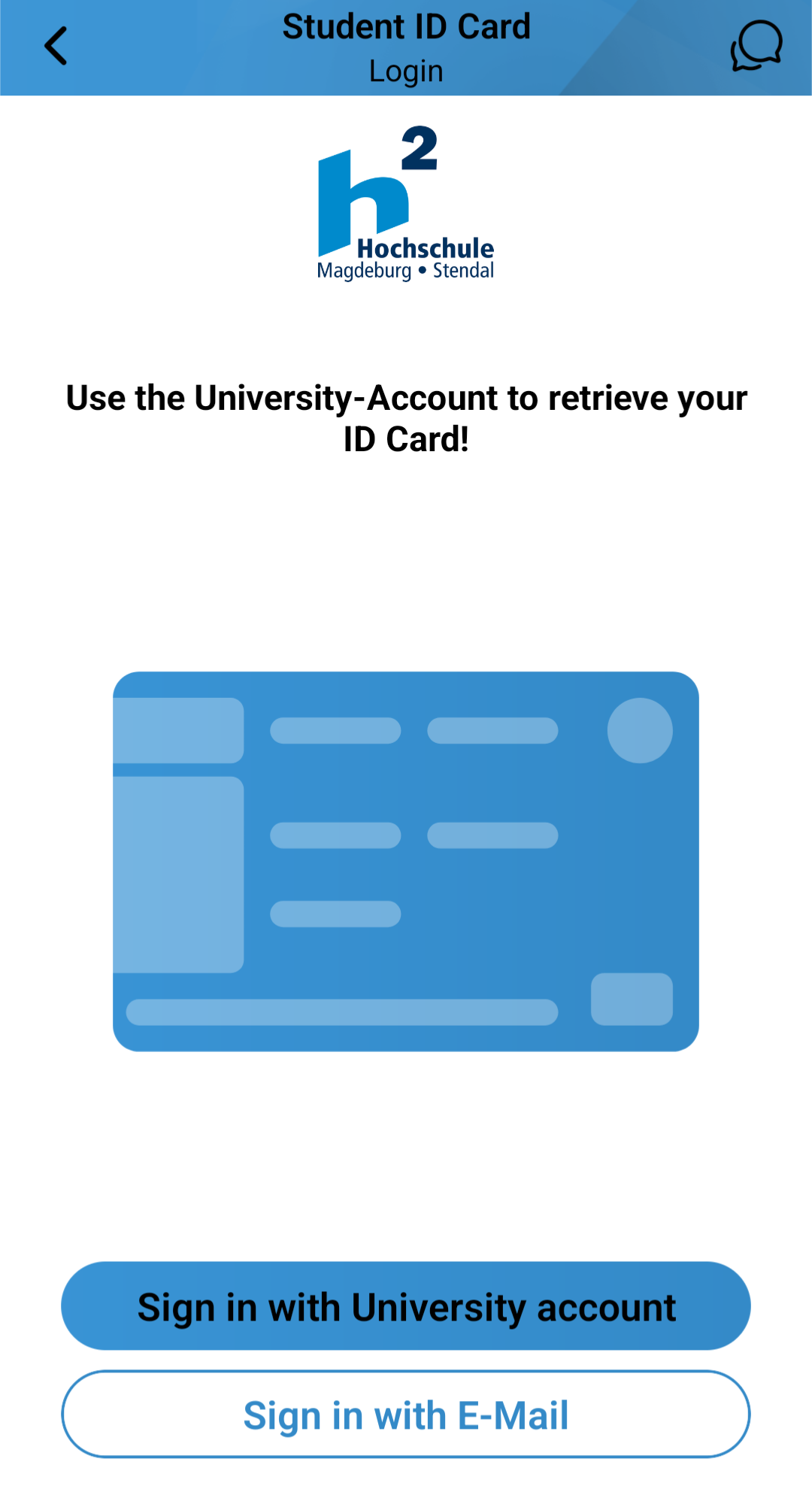
Open the ID card with the Student ID button. Click on Sign in with University account.
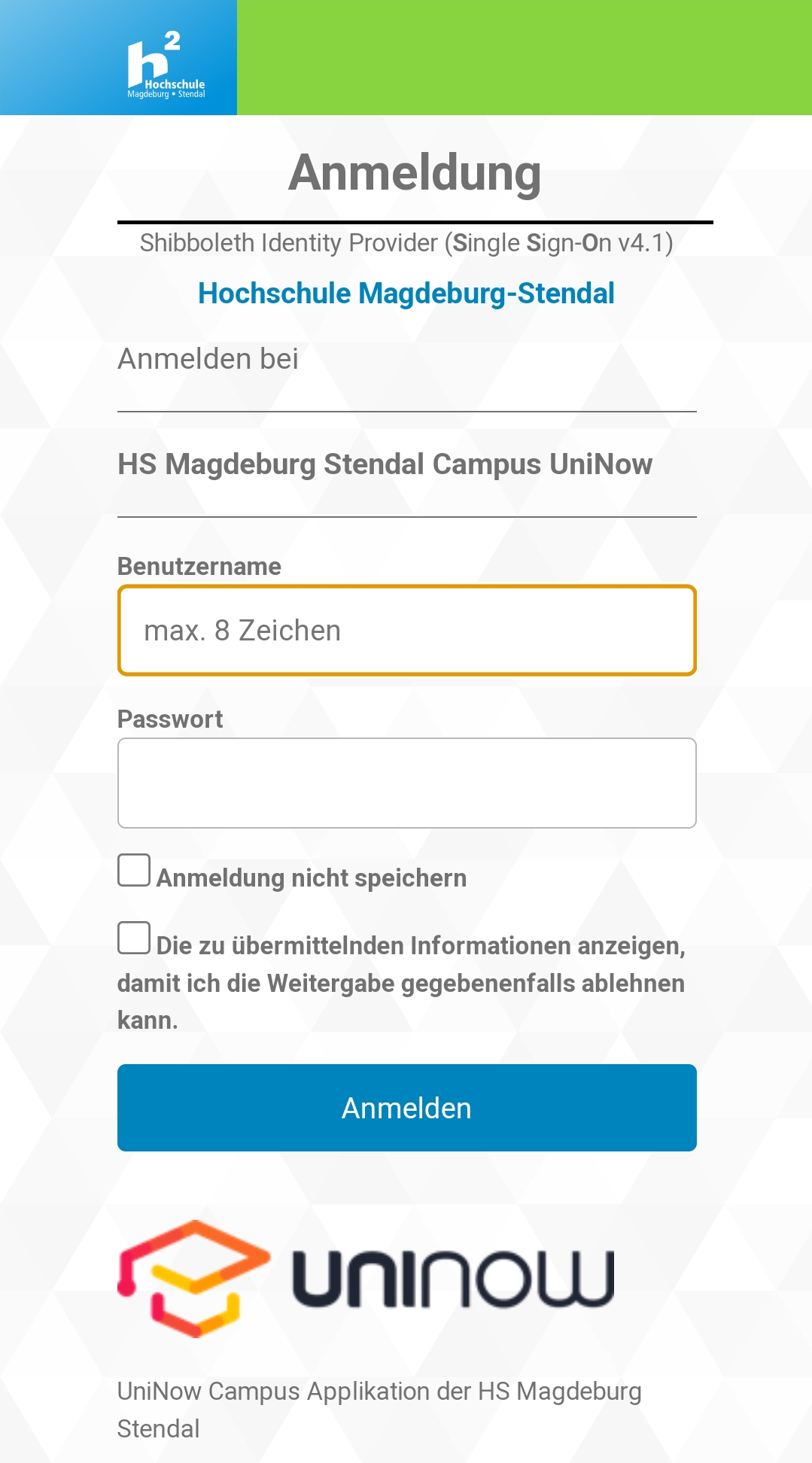
Log in to the university's authentication service with your account data (user name and password). The student ID card can now be used.
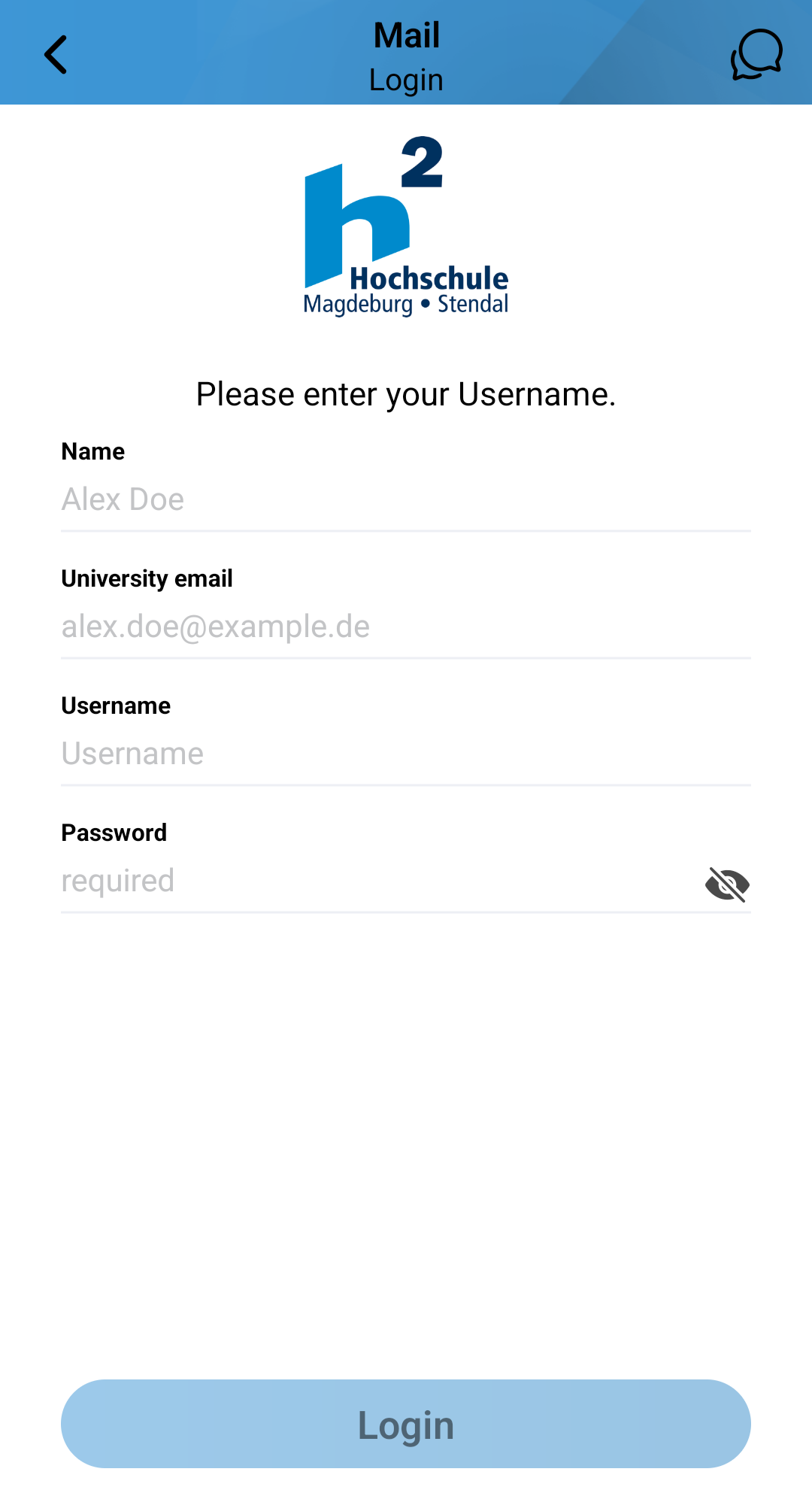
More information is required for the e-mail tool than for the student ID card.
The name is forwarded to the recipient as the sender. You have received your student e-mail address and your user name from the university. At best, you have already changed the password, which is also issued by the university, and enter it in the last field.
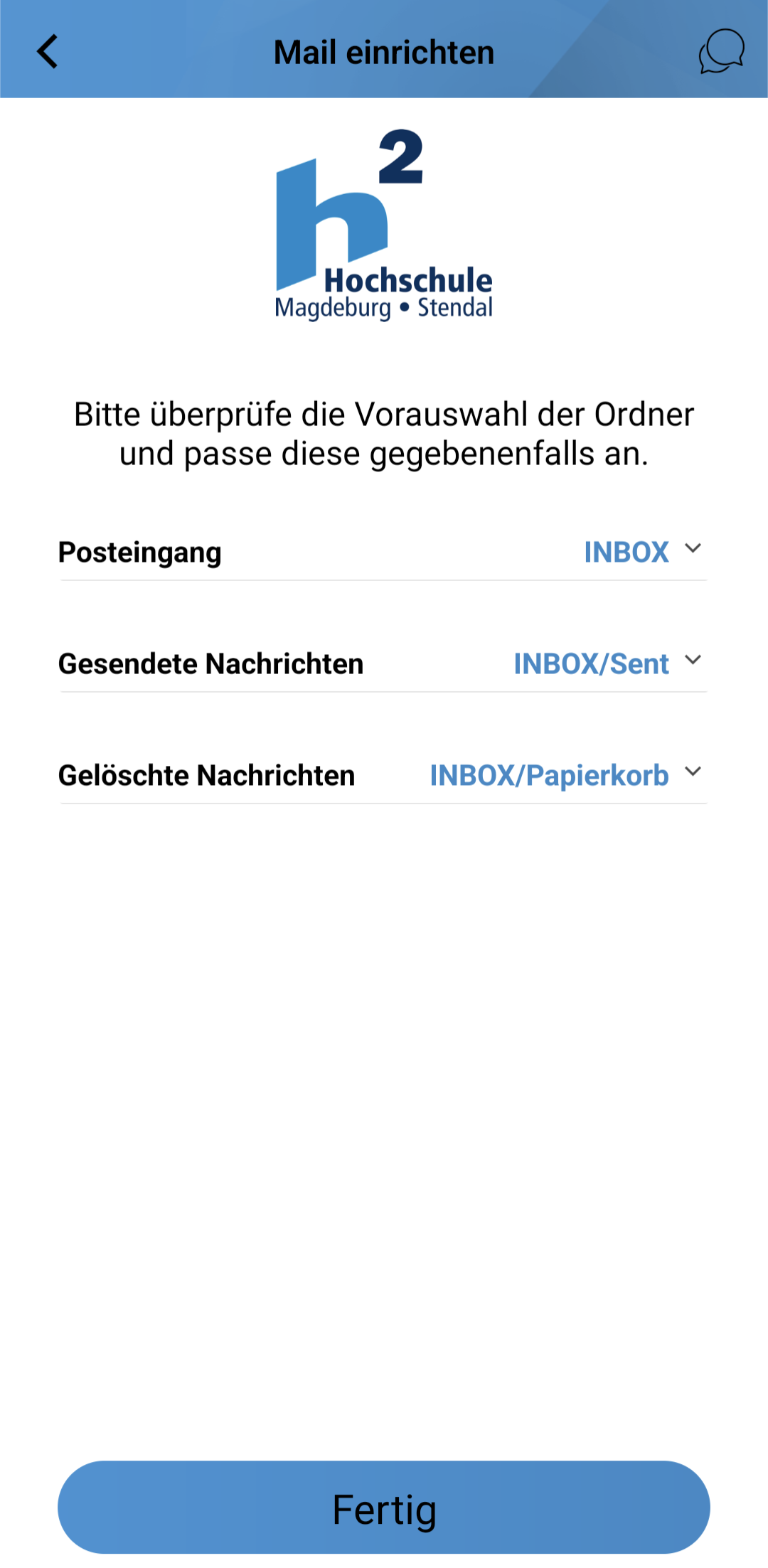
Select the storage location for your emails. You only need to change the default settings if you want to store emails in specific (sub)folders.
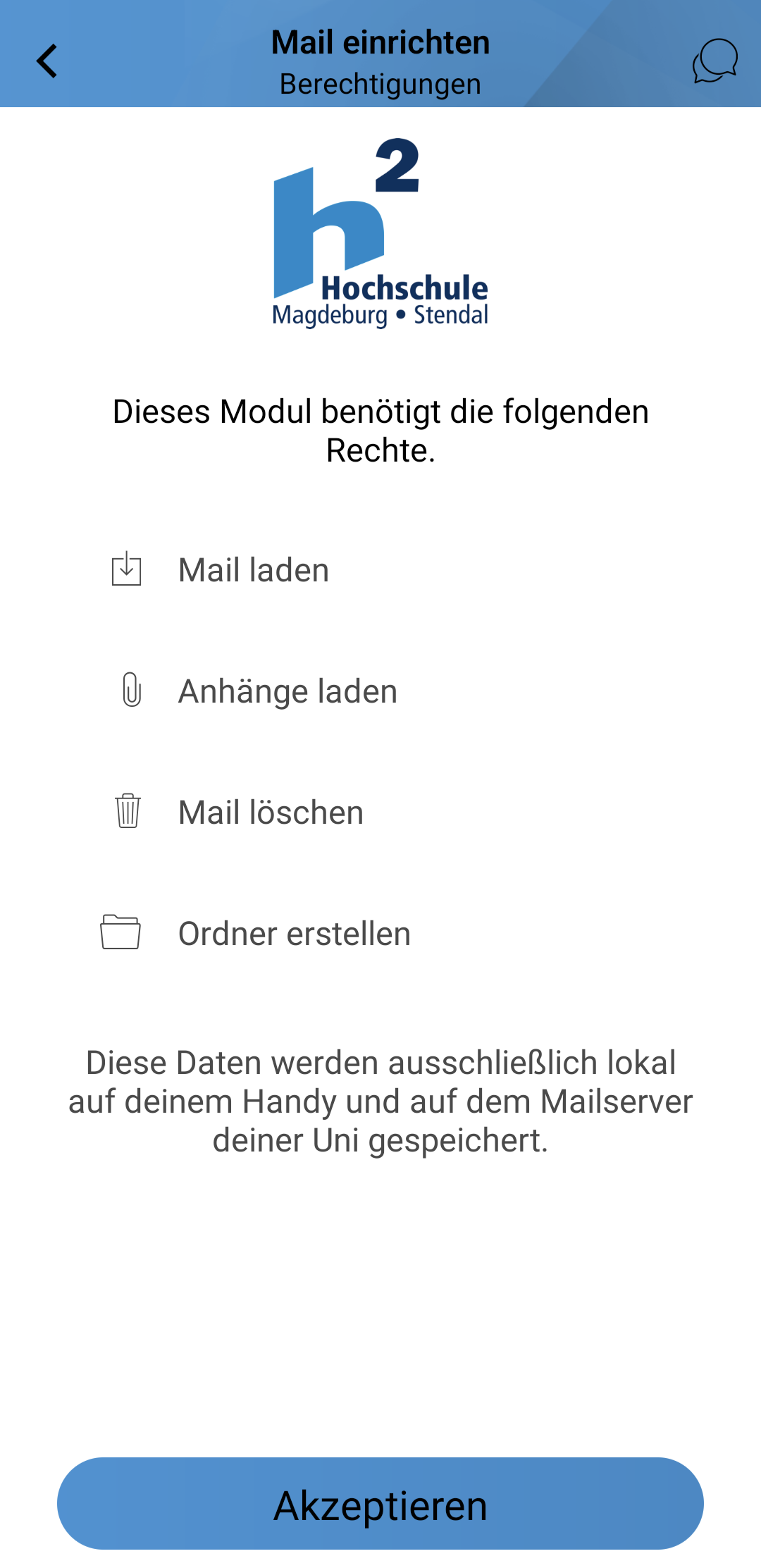
Assign authorizations in the following window.
Once you have confirmed everything, the inbox opens and you can use the e-mail tool.